
How to Disengage Park "P" Mode
Last updated November 13, 2026
This article explains how to unlock scooters that are in Park “P” mode, including models that support NFC unlocking like the Phantom 2.0.
Park “P” Mode Overview
- When your scooter is in Park “P” mode, the throttle is disabled and the scooter will not move.
- Park “P” mode is a security feature. It displays a “P” on the screen and keeps the motors engaged to secure the wheels, as an electronic anti-theft lock for secure parking. The scooter stays powered on to maintain motor braking.
- On 2023+ models, Park mode and locking are managed through the Apollo mobile app or (on some models) an NFC card, not the power button.
How to Activate Park “P” Mode
Always power on the scooter first. Activation depends on your model:
- Pre-2023 models (for example Air 2022, City 2022): press the power button 5 times quickly. This also works on some Phantom V3, 2024, V4 and V4X.
- Other 2023+ models: use the Apollo app to lock.
- Stolen scooter: see "What should I do if my scooter is stolen? Mark it as stolen in the Apollo app".
Unlocking Methods by Model
2023+ scooter models (app‑only)
- For 2023+ scooter models, unlocking can only be done through the Apollo mobile app.
- The power button unlock sequence (pressing it five times) has been permanently disabled and no longer works on these newer models (except for some Phantom V3, 2024, V4, V4X).
Unlocking with an NFC card
- These models have an NFC reader and can be unlocked with the NFC card that came with the scooter, as well as with the Apollo app: Phantom 2.0 and Phantom 2.0 Stellar, Apollo Go 2025, Go 2026 and Go Stellar, Explore 2.0 and Explore Stellar, City Pro 2025, City 2026 and City Stellar, and the Dash.
- The Apollo Go 2024 and every model before 2025 have no NFC reader: unlock them with the Apollo app.
- With the NFC card, tap it on the scooter to exit “P” mode. No card, or not sure: use the app steps below. Either way, the scooter must be powered on and you must be standing next to it.
Before Unlocking Your Scooter
- Make sure the scooter is turned on and you are standing next to it while using the app.
- The scooter must be connected for you to unlock it.
- Unlocking is designed to be convenient and secure when using the supported methods (app and/or NFC card, depending on your model).
Using the Apollo App to Unlock
- Turn the scooter on and keep it nearby.
- Open the Apollo app and ensure Bluetooth is enabled on your phone.
- Select your scooter from the list; if needed, re‑add it. From the sidebar, go to "Switch Scooter".
- The app will automatically connect to the scooter.
- Use the in‑app lock/unlock control to take the scooter out of “P” mode.
If the app cannot find the scooter, see the next section.
When the App Cannot Find the Scooter
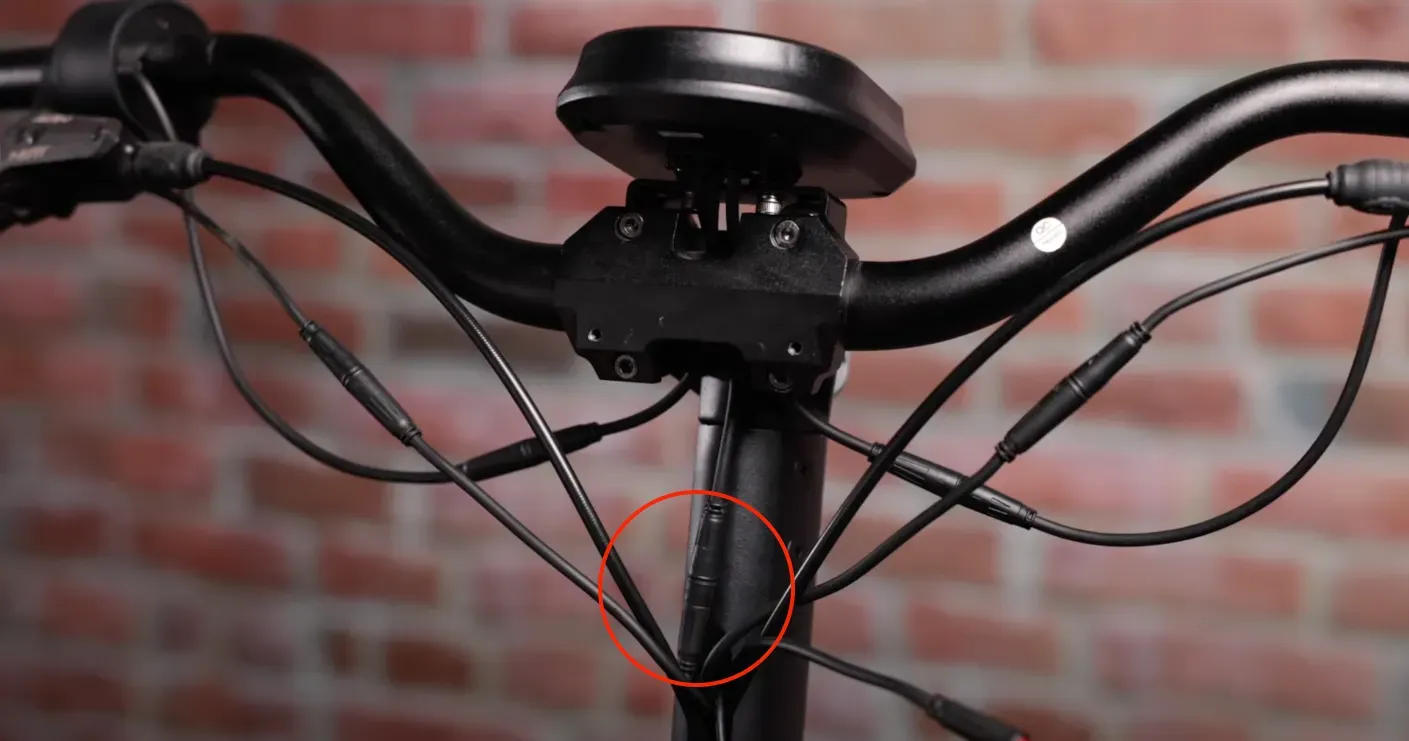
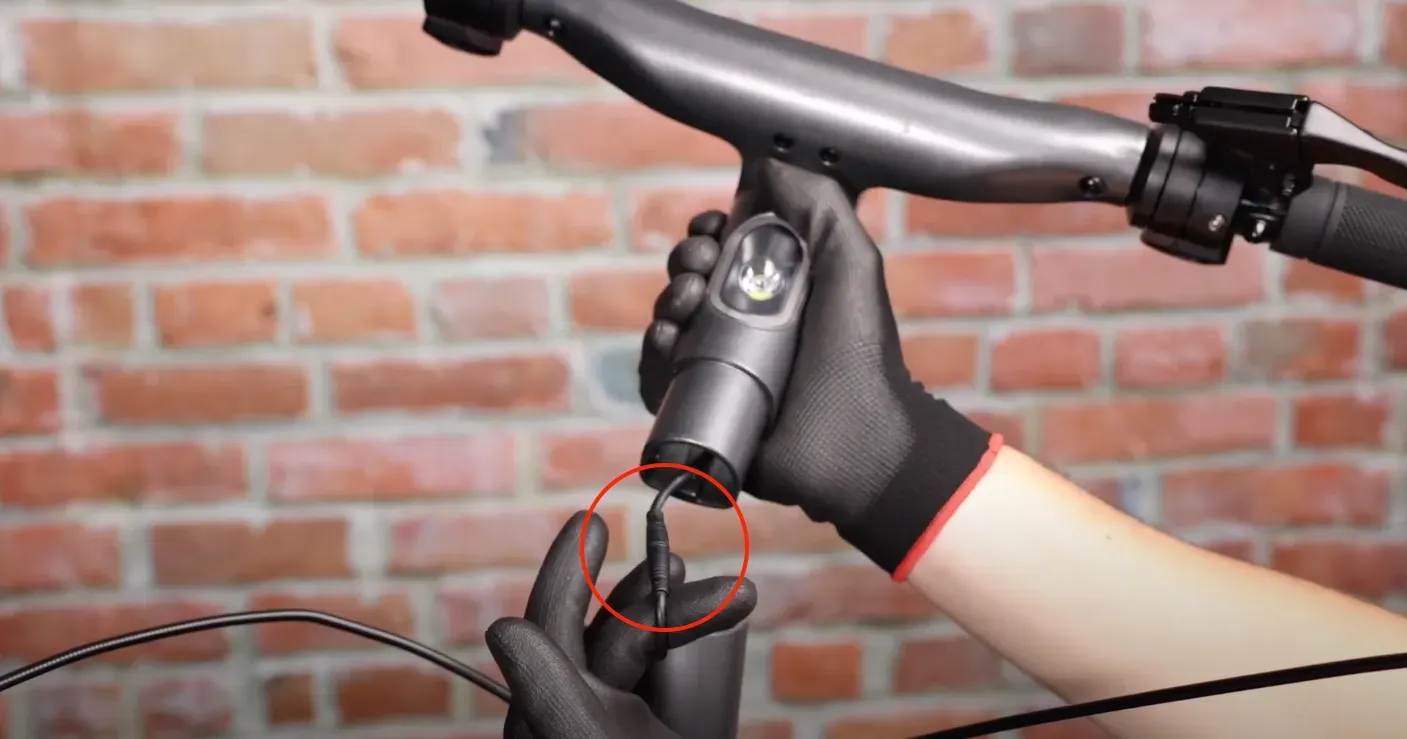
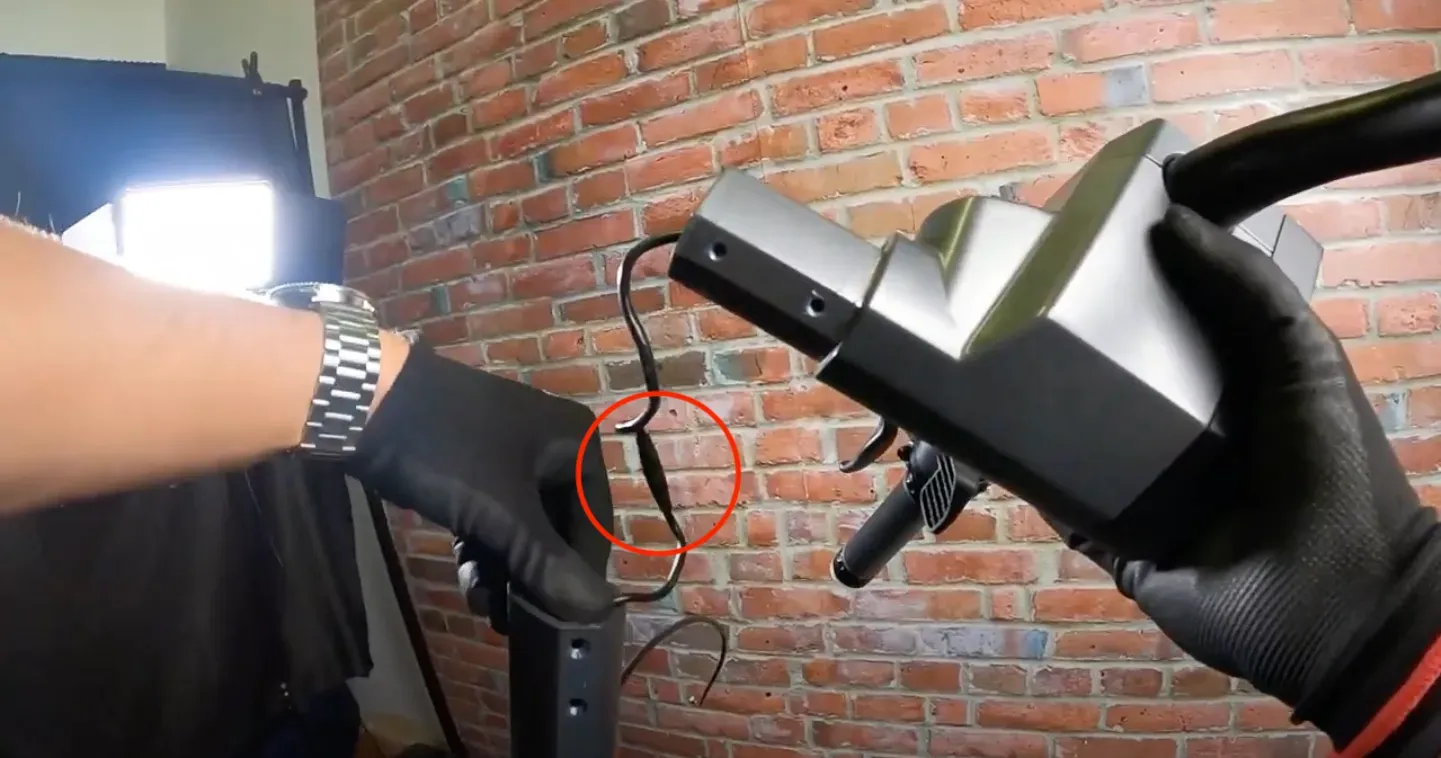
Follow Step 3, "Reset the Bluetooth Module", on What to Do When the App Won’t Connect to Your Scooter (remove the scooter from the app, then disconnect the handlebar assembly for 10 minutes). The communication cable to disconnect on each model is shown below. On the Phantom, the display has three cables (accelerator throttle, regen throttle and communication): disconnect the communication one.
Phantom:
Air 2023, City 2023 and City 2024:
Apollo Pro and Apollo Go:
After reconnecting the handlebar assembly:
- Power the scooter back on.
- Reopen the Apollo app and try pairing/unlocking again.
When the App Asks for a PIN
The registered owner is never asked for a PIN. To see or change it, or if you bought the scooter second-hand, see How to Access or Reset Your Scooter PIN.
NFC‑Enabled Scooters Stuck in P Mode / App Won’t Recognize
This section applies to scooters that support NFC unlocking (for example, the Phantom 2.0) that are stuck in “P” and are not recognized by the app.
Symptoms
- Scooter displays “P” and will not exit parking mode.
- The Apollo app cannot discover or recognize the scooter.
- After removing the scooter from the app, it may fail to power back on or remain unresponsive to pairing.
- Normal throttle operation is disabled while stuck in “P”.
Likely Causes
- Temporary corruption of the Bluetooth pairing state between the scooter and app.
- Controller/firmware session lock triggered during the app reconfiguration process.
- A soft‑state bug that leaves the scooter in a protected “off” state after app actions.
Tools Required
- Compatible Apollo charger for your scooter model.
- Smartphone with the Apollo app installed and updated.
- Stable internet and Bluetooth connection.
Recommended Solution (Soft Reset via Charger)
A charger‑assisted power cycle usually clears the stuck “P” state and restores app recognition.
- With the scooter powered ON, plug in the charger to force a controlled shutdown.
- Unplug the charger, then power the scooter back ON normally.
- Open the Apollo app, ensure Bluetooth is enabled, and re‑add the scooter if needed.
- If the app does not recognize the scooter, force‑close and reopen the app, then try pairing again.
- Toggle your phone’s Bluetooth off and on; if possible, test with a second phone to rule out device‑side issues.
- If the scooter is still stuck in “P” after pairing, repeat the charger‑assisted cycle once more.
If none of the above works, contact Apollo Support so they can review firmware and controller diagnostics.